Setup KeepassXC
 Photo by cottonbro studio
KeepassXC is the One True password manager. Not convinced? click here.
Download the software
KeepassXC is free and open source. The official page is https://keepassxc.org/. You can download it straight from their page. Clients are available for Windows, Linux and Mac.
Also check out the official repo on GitHub.
Create a Database
Once the software is installed, open the application.
Click: Create Database.
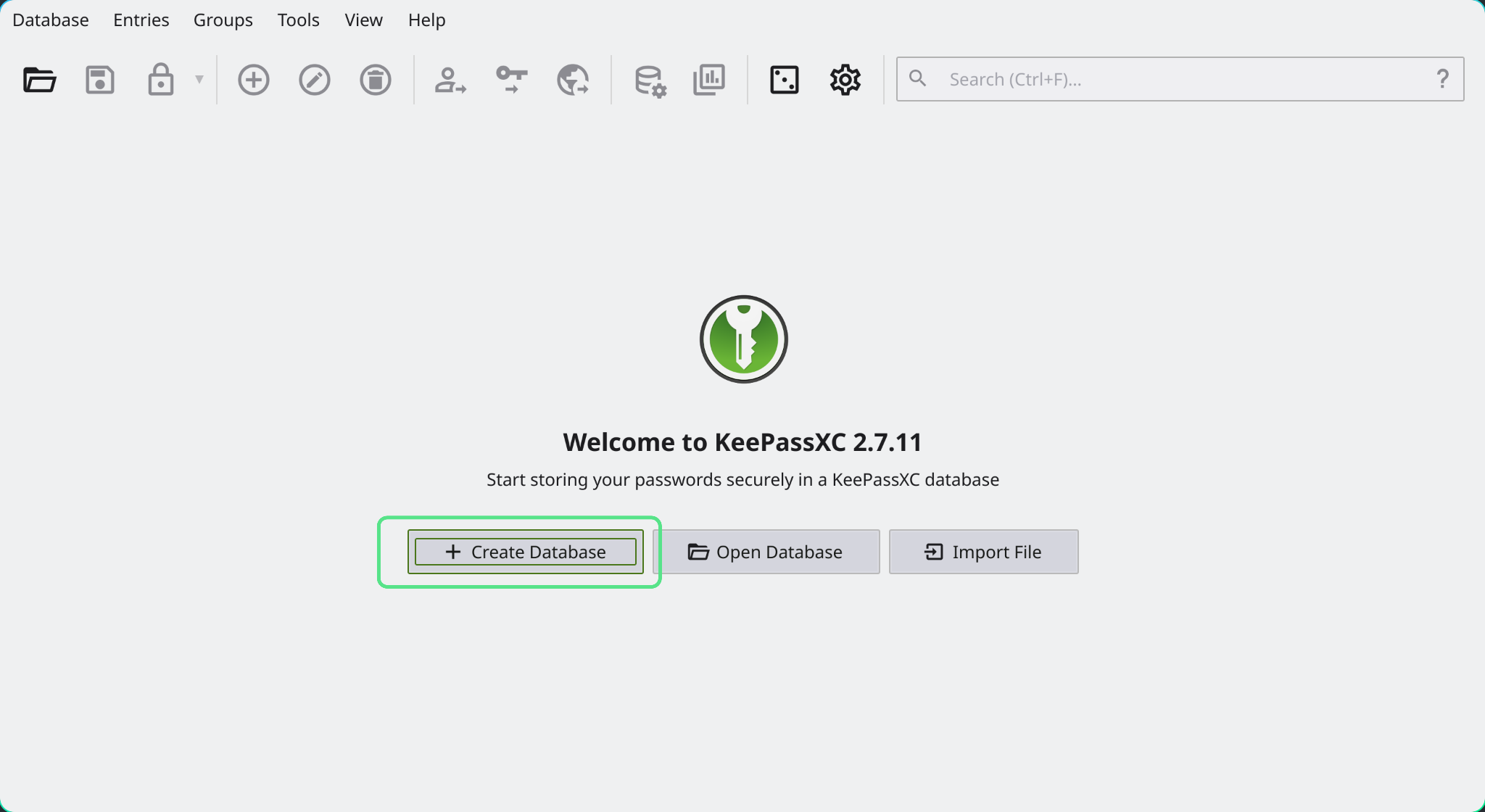
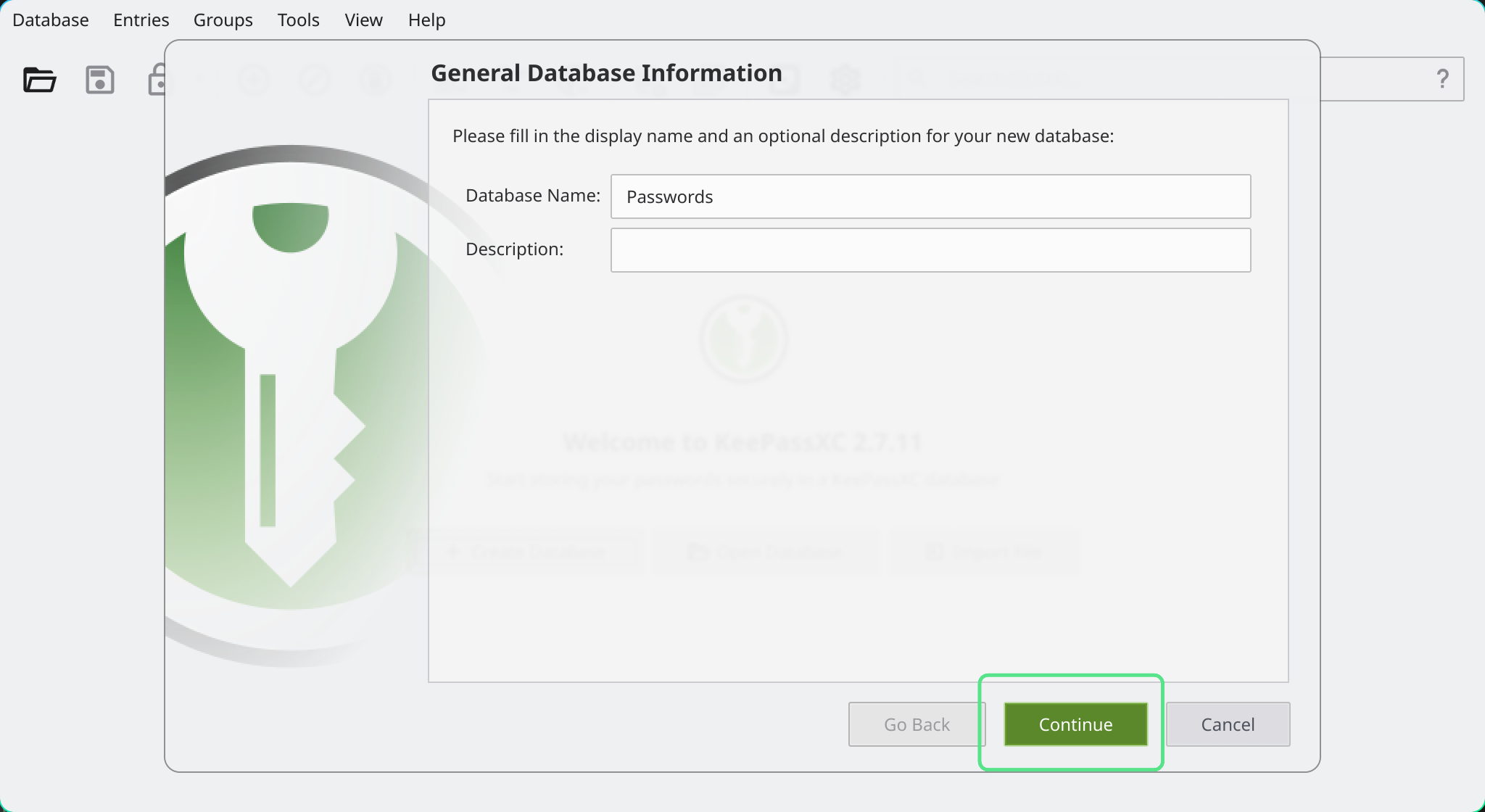
Add a name and description, or just leave the defaults. Then click: Continue
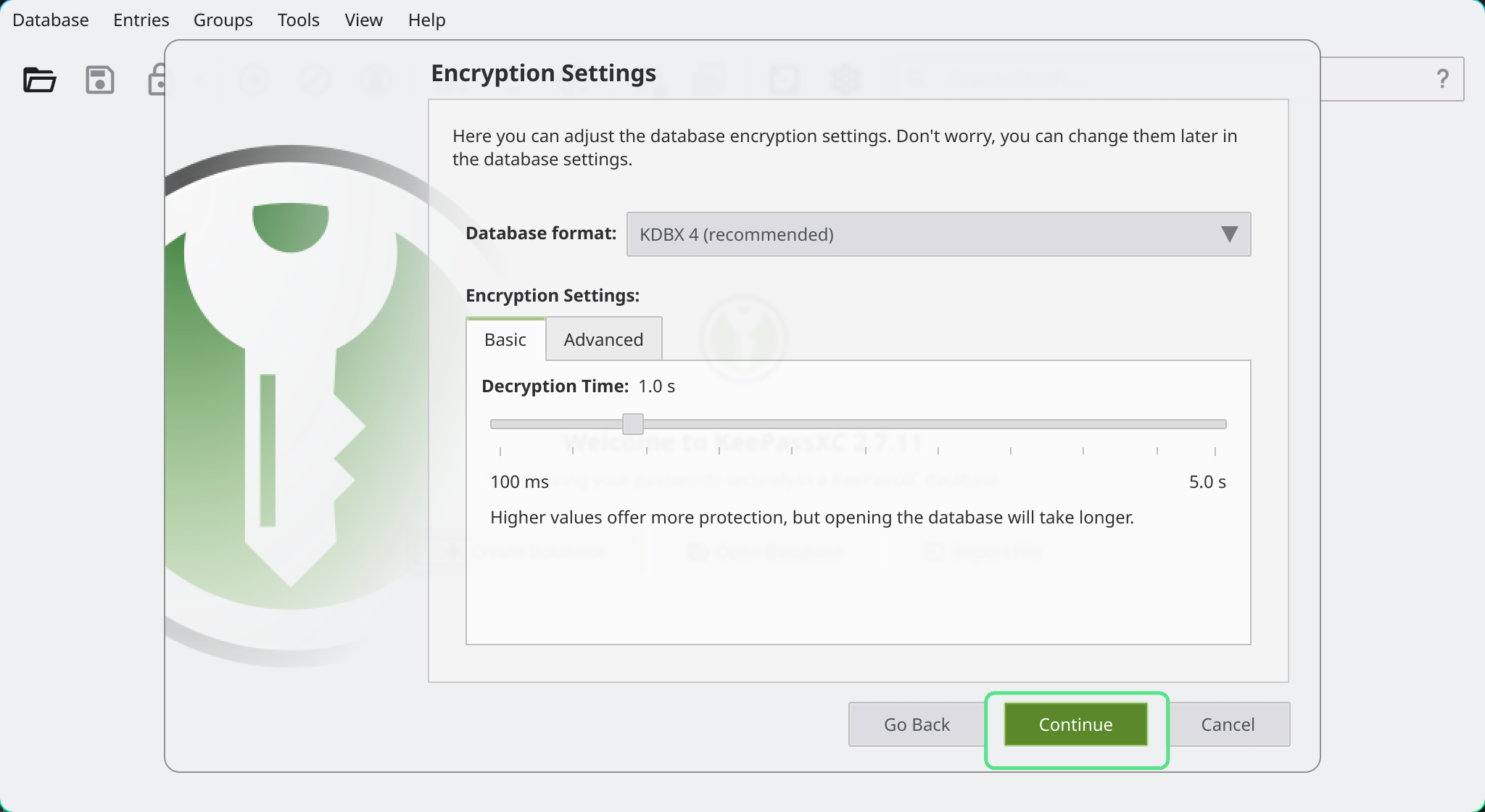
On the encryption setting page, you can leave everything at the default setting. These are good settings. Click Continue
On the next page you will be asked for a password. DO NOT REUSE ANY OF YOUR EXISTING PASSWORDS. Come up with something new. Pro tips for creating a password:
- Make it a few words, preferably in a non-English language. Long is good.
- Don't worry about symbols and numbers. Add them if you want, but don't complicate things for yourself.
Examples of bad passwords:
P@ssw0rd2025!Hunter2M1lleniumFalc0n
Examples of good passwords: (But don't use these, come up with your own)
EncryptionIsHardButMyShitIsSafeunicornsvomittingrainbowswholetthecatsoutmeowcactussenzijngeenstoelenmiranaestaconfundida
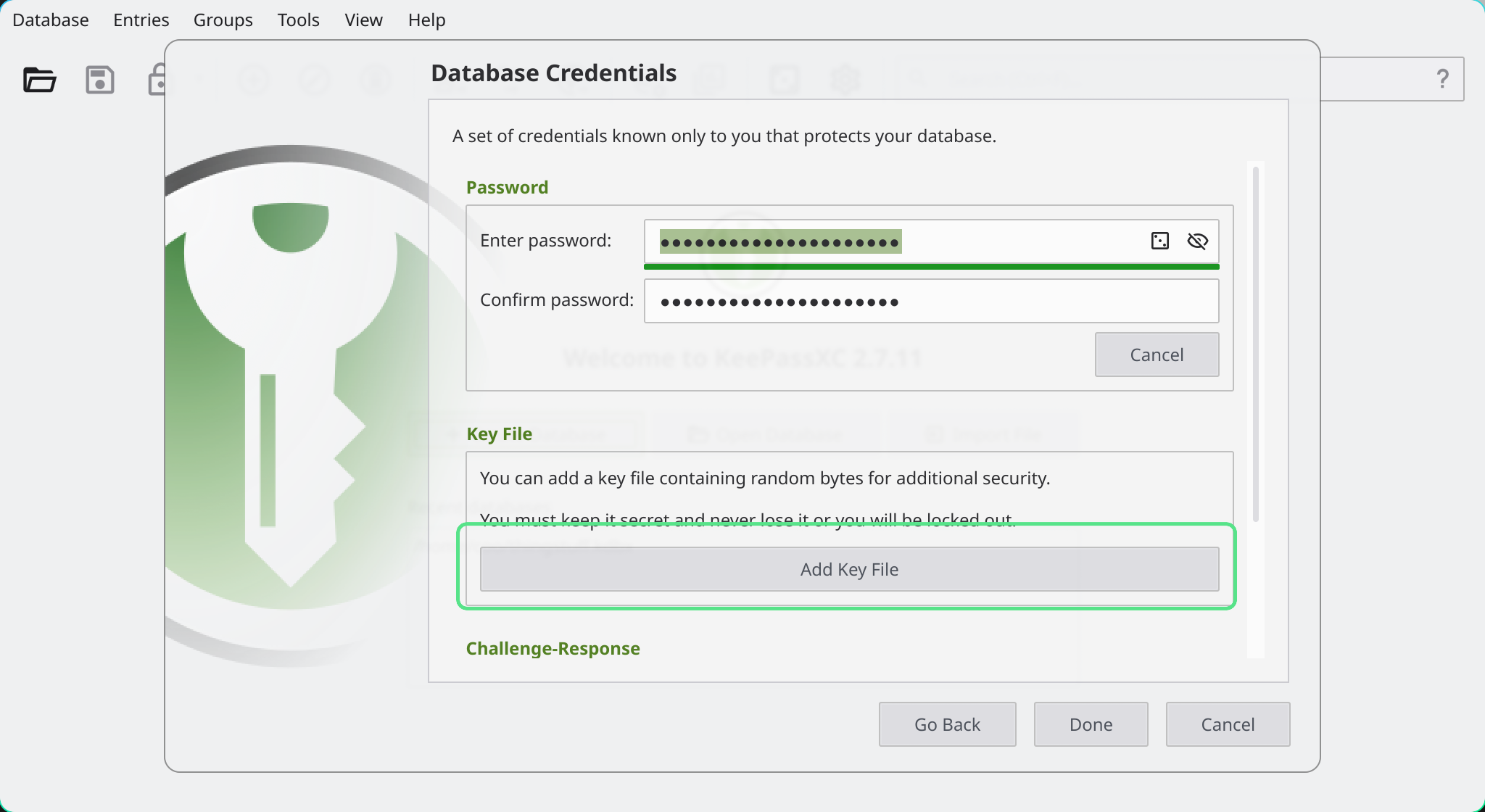
Once you entered a good password (twice), click the button that says Add additional protection
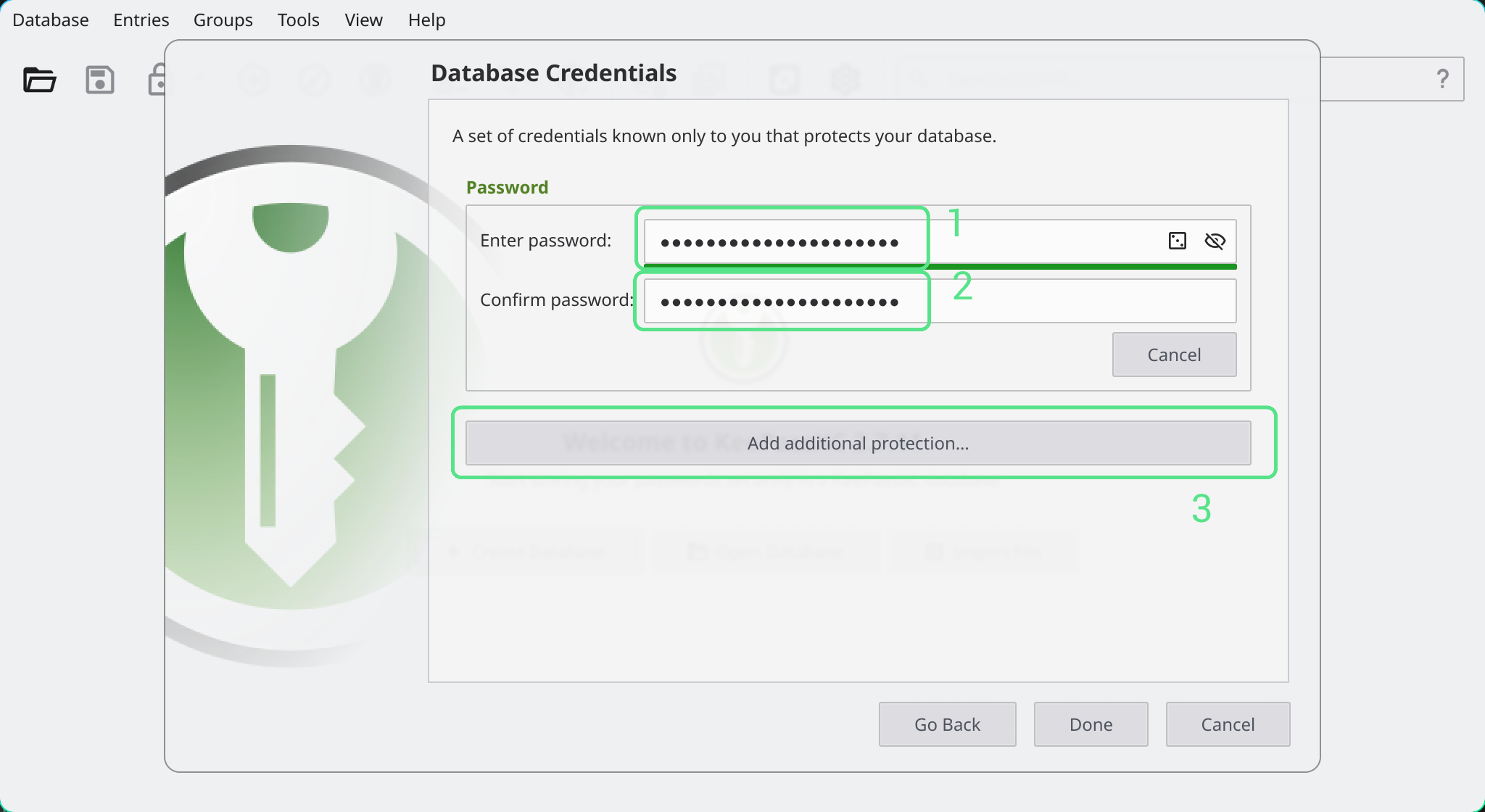
Click then Add key file. And then click Generate.
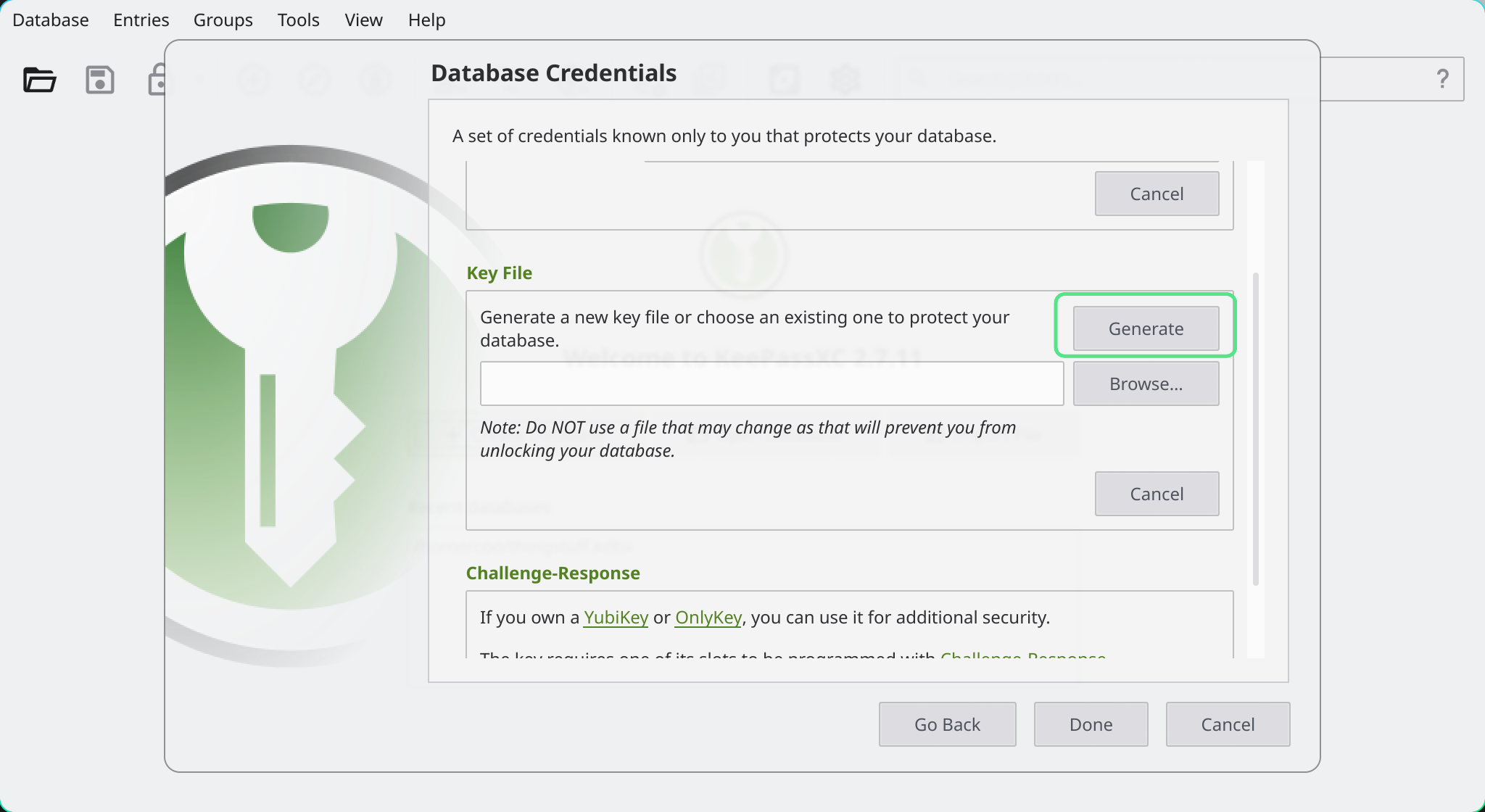
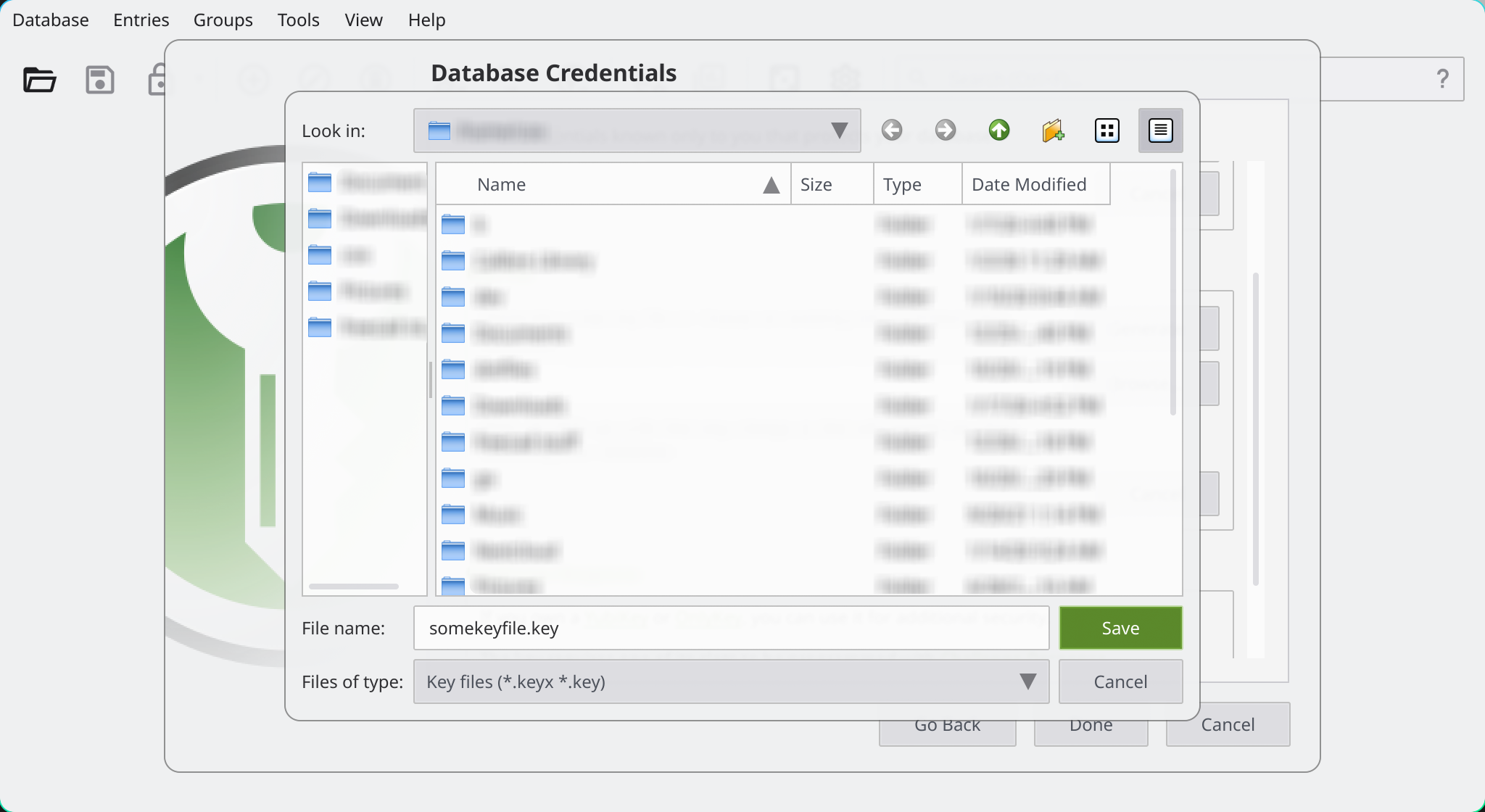
A file dialog will pop up to let you select where you want to save the key file. Choose a location that is NOT automatically backed up to any cloud storage service.
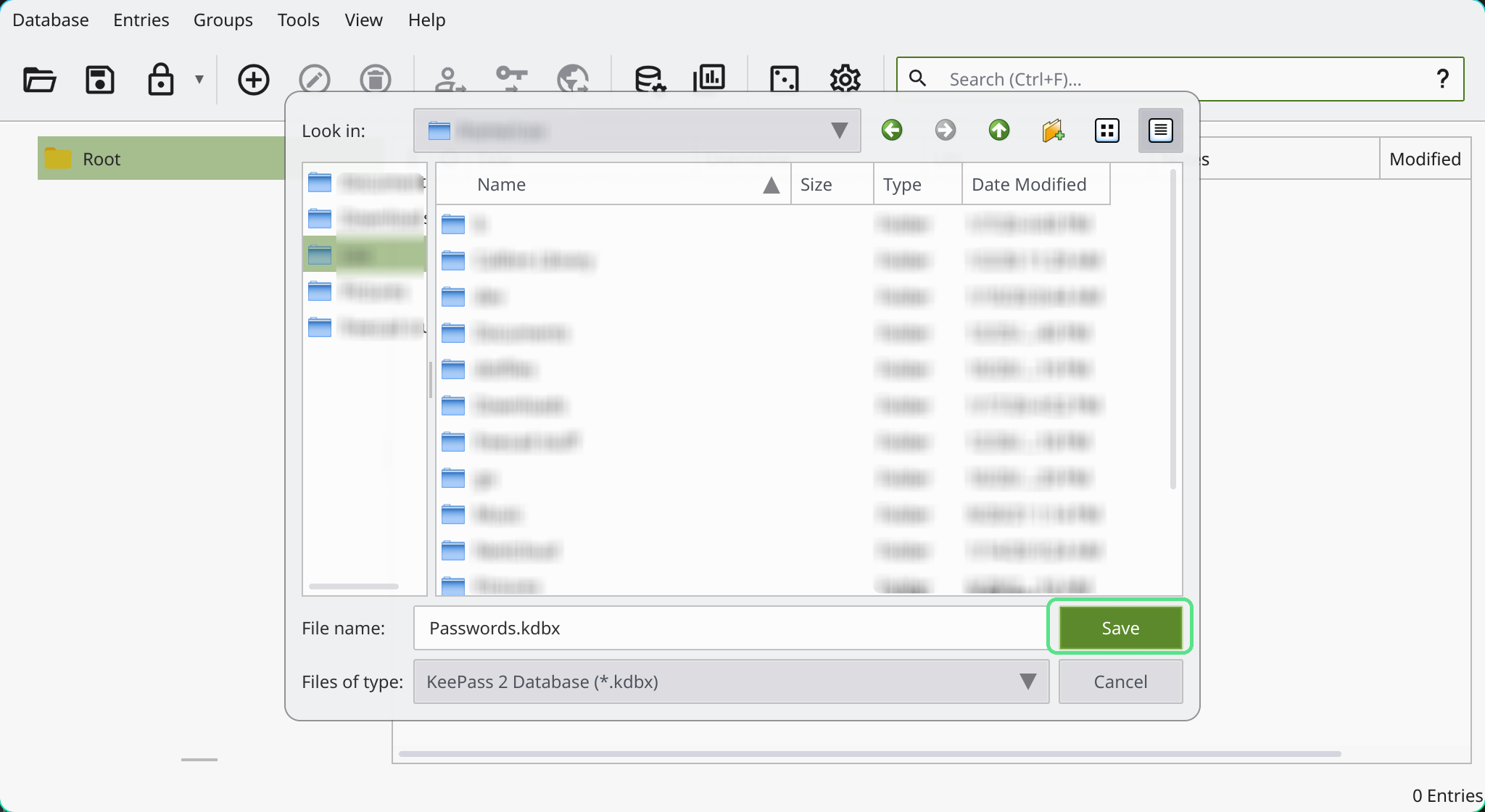
Click Done. Another file dialog will pop up to let you select where you want to save the Database File. Choose a location that IS automatically backed up to your cloud storage service.
Your setup is now done. The files are created. KeePassXC remembers the last database and key file you used (if you let it), so you only have to enter the password to unlock it. If you are on Mac or Windows, it also has a quick unlock feature that allows you to use your fingerprint or windows hello. This feature is also coming for linux, but is not there yet at the time or writing.
Setting up KeePassXC on a second device
- Make sure the device has access to the same cloud storage service (e.g. Nextcloud or Dropbox)
- Install the app / software from the app store or keepassXC website.
- Android App
- IOS App
- Copy the key file to your new device
- Use a USB stick, copy over the local network, or directly connect your device to your computer.
- You can also use airdrop or quick share
- Start the app
- Choose the database (on your cloud storage service)
- Select the key file
Other interesting settings
For KeePassXC on Windows, Mac or Linux, the complete documentation is here.
Settings that I use a lot are:
- Auto locking: After not using the password database for 10 minutes, lock it again. Optional, but good if you let others use your computer occasionally.
- Browser Integration: Useful to auto-fill passwords in the browser. Supports all main browsers. The setup can be a bit finacky. See the docs